
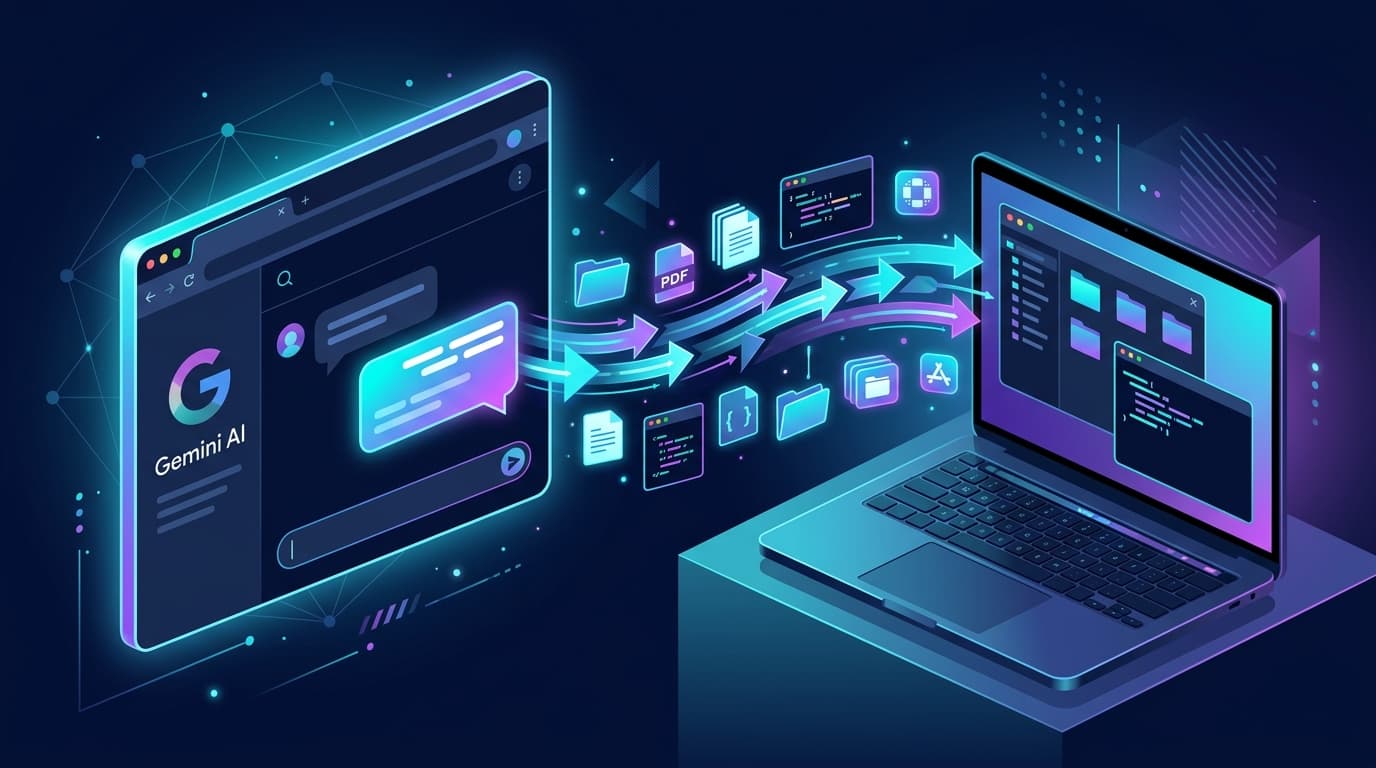
Most people assume "AI controlling your computer" requires Claude's paid tier or a premium subscription. In practice, you can achieve the same result with Gemini's free plan and one open-source tool. Here's how to set it up.
How It Works
MCP (Model Context Protocol) is an open standard that lets AI models securely access local tools — including your file system, terminal, and running processes — through a unified interface.
Desktop Commander is an open-source MCP server. Its Remote mode runs a lightweight agent on your local machine and opens an encrypted tunnel to the cloud, so the Gemini web interface can "see" and operate your computer.
Once configured, you can type things like:
- "List every PDF on my desktop"
- "Find lines containing TODO in my ~/projects directory"
- "Create a test script in my Documents folder and run it"
What You Need
- Node.js (v18 or newer) — download from nodejs.org
- A Google account (free tier is fine)
- A browser open at gemini.google.com
Step 1: Start the Desktop Commander Remote Agent Locally
Open a terminal (Terminal on macOS, PowerShell on Windows) and run:
npx @wonderwhy-er/desktop-commander@latest remote
On first run, it downloads dependencies automatically. When ready, the terminal shows a pairing link or code. Open it in your browser and complete OAuth authorization with your Google account.
Keep the terminal window open. The agent must stay running to maintain the connection.
Step 2: Add the MCP Connection in Gemini
- Go to gemini.google.com and open Settings
- Look for Extensions or Connections (the label varies by version)
- Choose to add an MCP connection and enter:
https://mcp.desktopcommander.app/mcp
- Complete the account pairing. Gemini will confirm that local tools are available.
If your current version of Gemini doesn't show an MCP connection entry yet (the feature is rolling out gradually), use Gemini CLI instead. In its settings.json configuration file, add:
{
  "mcpServers": {
    "desktop-commander": {
      "command": "npx",
      "args": ["-y", "@wonderwhy-er/desktop-commander"]
    }
  }
}
Step 3: Verify and Start Using It
In the Gemini chat, type:
List all folders on my desktop
If Gemini returns your actual local directory structure, the connection is working.
From there, you can try more complex requests:
- Find files: "Find everything in my Downloads folder larger than 100 MB"
- Batch operations: "Move all screenshots from my desktop to ~/Pictures/Screenshots"
- Run scripts: "Run npm install in ~/projects/myapp and tell me if there are any errors"
Security Notes
- Desktop Commander runs locally — all file operations happen on your machine. Only AI instructions and result summaries travel over the network; file contents do not get uploaded.
- Set this up only on personal machines. Avoid computers holding sensitive work data unless you've checked your organization's data security policy.
- Once authorized, Gemini can read and write any file you have permission to access — review instructions before confirming.
- You can stop the agent at any time by closing the terminal window, immediately cutting the connection.
How It Compares to Claude Computer Use
| Gemini + Desktop Commander | Claude Computer Use | |
|---|---|---|
| Cost | Free (Gemini free tier) | Requires Pro/Team plan |
| Scope | Files, terminal, processes | Mouse, keyboard, full GUI |
| Setup effort | Moderate (requires terminal) | Simpler (built-in) |
| Best for | File management, scripts, code search | GUI automation, web tasks |
If your work involves file organization, code search, or batch script execution, this setup covers it entirely — at no cost.
Summary
Desktop Commander Remote MCP turns Gemini from a chat tool into an AI agent that can genuinely act on your local environment. Setup takes under ten minutes and involves two steps: start the local agent, then add the MCP address in Gemini.
For more practical AI tool guidance, see our AI tool selection guide and the better prompting guide.